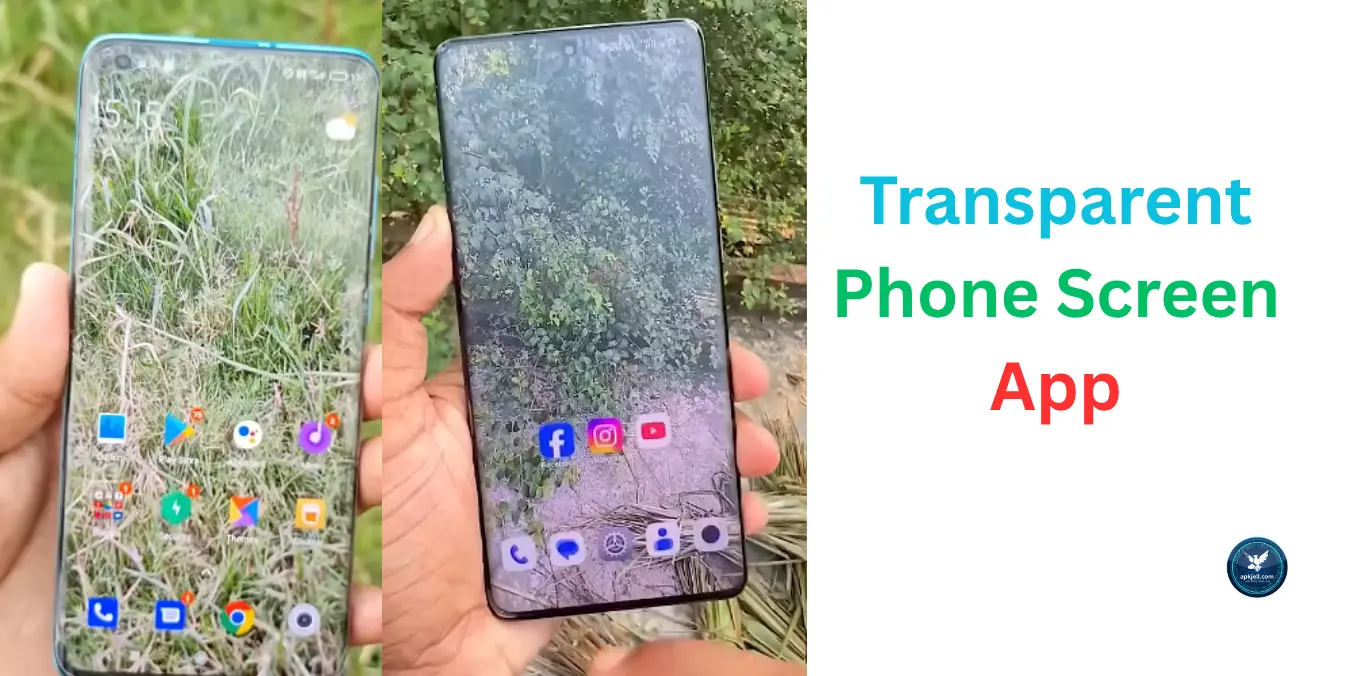
I was standing in line at a mobile shop in Sargodha when the guy next to me held up his phone, and I swear, for a second, I actually thought the screen was see-through.
Not glitching, just glass, like it wasn’t even there. He caught me staring and laughed, then showed me it was a transparent phone screen app.
That was maybe eight months ago, and I’ve been messing around with these apps ever since on my own phone, a Vivo Y51 running Android 11 (Funtouch OS 11), mostly because people keep asking me, Brother, how does this happen? Every time I show them.
So here’s everything I’ve actually tested on my own device, including the stuff that didn’t work the way I thought it would.
Quick note before we go further: my Vivo Y51 shipped on Android 11, but if you’ve got the same model, double-check your version under Settings > About Phone, since some units got an OTA update since launch.
What I’m describing below is specific to my exact setup, so results can vary slightly on other Android versions.
What Is a Transparent Phone Screen App (And What It Actually Does)
Let’s get one thing straight before anything else, because I fell for the hype myself the first time. Your phone isn’t actually becoming transparent. Nothing physical happens to the glass or the display panel. None of it.
Is Your Phone Really Becoming Transparent?
No, not even close. What a transparent phone screen app does is take whatever your camera sees and stretch that live feed across your screen as a wallpaper.
So it looks like you’re seeing through your phone, but really you’re just staring at a live camera feed dressed up to fool your eyes. Clever trick. Not a hardware feature.
I bring this up early because I’ve scrolled through comment sections full of people disappointed after installing one of these, expecting Nothing Phone-level real transparency.
That’s a completely different thing (actual see-through back panels showing internal parts), and it’s not what we’re doing here.
How the Camera-Based Illusion Works
The app grabs a live feed from your rear or front camera and locks that feed in as your home screen or lock screen wallpaper.
Move your phone around, and the background changes, because the camera is literally seeing what’s in front of (or behind) it in real time.
Your icons and apps just sit on top like always; they’re floating over a live video instead of a plain static image.
Best Transparent Screen Apps I’ve Tried on My Vivo Y51

Here’s exactly what I installed, tested, and used on my own device with the real app names so you don’t end up confused searching the Play Store for the wrong thing.
Transparent Wallpaper (by AZ Mobile Software) Full Camera Live Wallpaper
- Phone used: Vivo Y51, Android 11
- What I did: Installed it directly from the Play Store, granted camera permission, set it as both home and lock screen wallpaper using the rear camera.
- What worked: This one was the most reliable on my device. It sets as your actual saved wallpaper, not just a screensaver, so it survived a restart without issue. Setup took under two minutes.
- Problem I hit: Indoors under my room’s tube light, the feed looked noticeably grainy. My phone’s rear camera just isn’t strong enough in low light to make the illusion convincing; it looked fine outdoors or near a window, but flat and washed out indoors.
Transparent Screen (by CraftsApp) Simple Live Wallpaper Option
- What I did: Installed it as a lighter alternative, tested with front camera mode this time.
- What worked: Fewer permissions requested, did exactly one job without extra clutter. If you just want to try the effect without extra features, this is the one I’d hand to a friend who’s not that into tech.
- Problem I hit: No major issues, but it’s basic; don’t expect extra customisation options like clock overlays or wallpaper libraries.
TM Real Transparent Screen (by Skeewy) Works Over Other Apps
- What I did: This is a different category entirely, and honestly the more useful one on my mobile. Instead of just being a wallpaper, it adds a transparency layer on top of whatever app you’re using.
- What worked: I tried this once while dodging a very determined stray dog on my evening walk, and it genuinely helped; I could see the road ahead while glancing at my messages.
- Problem I hit: In landscape mode, only half my screen stayed transparent while the other half looked normal a known bug I confirmed by checking other users’ reviews too. Portrait mode worked fine every time, so I just stuck to that.
How to Set Up a Transparent Phone Screen App (Step-by-Step)

Android Setup Guide
- Install a transparent wallpaper app from the Play Store.
- Open it and grant camera permission when it asks.
- Choose the rear camera or front camera depending on which view you want.
- Tap Preview to check how it looks before you set anything.
- Set it as your home screen, lock screen, or both.
- Restart your phone once the effect looks noticeably cleaner after a fresh restart instead of applying it live.
Tips to Make the Transparent Effect Look More Realistic
Camera Placement and Lighting Tricks
Good lighting made a bigger difference than I expected going in. Indoors under a dim bulb, the whole effect looked muddy and kind of pointless.
Near a window or outdoors, it looked genuinely convincing. If you’re trying this to show someone or record it, do it near natural light.
Adjusting Transparency Level for Best Results
Most apps let you dial the transparency up or down. Somewhere around 70–80% opacity looked the most realistic to me; cranking it all the way to 100% sometimes makes your icons hard to actually read against a busy background.
Battery, Performance, and Permissions: What to Know Before You Install
Does It Drain Your Battery Faster?
Yes, noticeably. The camera has to stay semi-active to keep feeding the live image, and that costs real power.
On my Vivo Y51 (5000mAh battery), I lost roughly 8–10% extra battery over a normal day when I left one of these apps running constantly.
I don’t keep it on all day anymore, just when I want to show someone or actually need the awareness feature while walking somewhere.
Camera Permission: What’s Normal and What to Watch For
Every legit transparent phone screen app needs camera access that’s expected, not a red flag on its own.
What you should actually check is whether it’s asking for stuff it has no business needing, like contacts, SMS, or your location, when all it’s supposed to do is show a live wallpaper.
If an app piles on unrelated permissions, that’s your cue to uninstall and grab a different one instead.
Transparent Screen App vs Real Transparent Display Technology
Why True Transparent Phones Aren’t on the Market Yet
Companies have shown off transparent display prototypes for years now, and Samsung’s held patents on the tech for almost a decade.
But actually getting a fully transparent, working smartphone screen into mass production, hiding all the internal components, battery, circuitry, somehow too is still not commercially realistic.
What you’re getting today with a transparent phone screen app is a very good simulation, not the real thing, and that’s completely fine as long as you go in knowing that.
FAQs
Are transparent screen apps safe to use?
Generally, yes, as long as you install from the official Play Store.
Do these apps work without an internet connection?
Yes. They run off your camera, not internet data, so they work fine in offline or aeroplane mode too.
Can I use a transparent screen app on the lock screen?
Most Android options let you apply it separately to the lock screen and home screen during setup.
Final Thoughts on Using a Transparent Phone Screen App
Honestly? A transparent phone screen app is a fun novelty that occasionally turns into something genuinely useful, like when I’m walking somewhere and want a quick heads-up view without fully looking away from my phone.
On a mid-range device, it’s never going to look flagship-level convincing indoors, and yeah, it’ll cost you some battery, but for a free five-minute install, it’s worth trying at least once.
Just don’t go in expecting your phone to actually turn into glass; that part’s still science fiction for now.

I’m Tanveer Abbas, the creator of APKJell.com. I test and write about the latest Android apps and games, sharing safe, honest, and easy-to-understand insights based on real hands-on experience. My goal is simple: help you find useful, reliable tools without wasting your time on the bad ones.


